Chapter 9
Actions
· Published by Osentio
Actions let the AI agent do more than answer: it can carry out specific tasks during a conversation. Select the agent, then open the Actions tab.
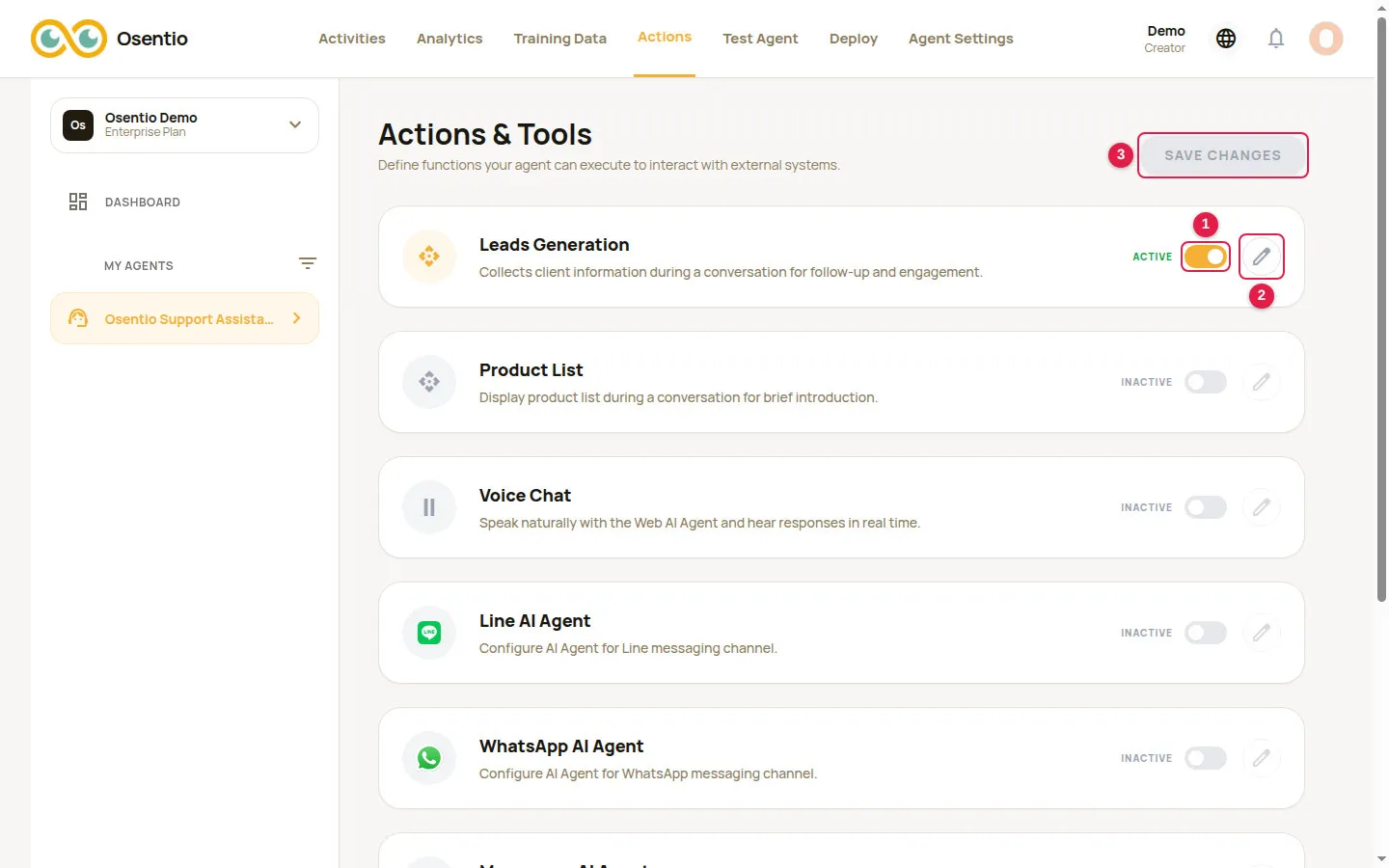
Turning an action on — always in this order
- Turn on the action's switch 1. Its status changes to Active.
- Click the pencil 2 to open its settings, fill them in and click Done.
- Click Save Changes 3 at the top right.
ImportantWithout Save Changes, neither the switch nor the settings take effect. The pencil can be clicked only after the action is turned on.
Leads Generation
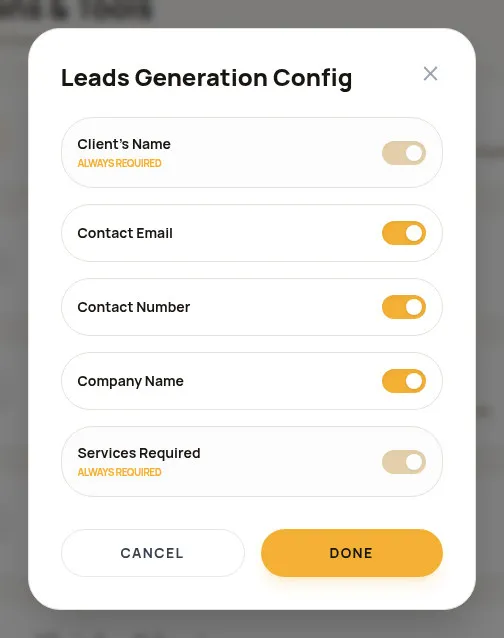
When a customer wants to know more or asks to be contacted, the agent asks for and records their details during the conversation.
- Client's Name and Services Required are always required and cannot be turned off.
- Contact Email, Contact Number and Company Name can be turned on or off as needed.
Collected leads appear on the Leads tab of Activities (see chapter 11).
Product List
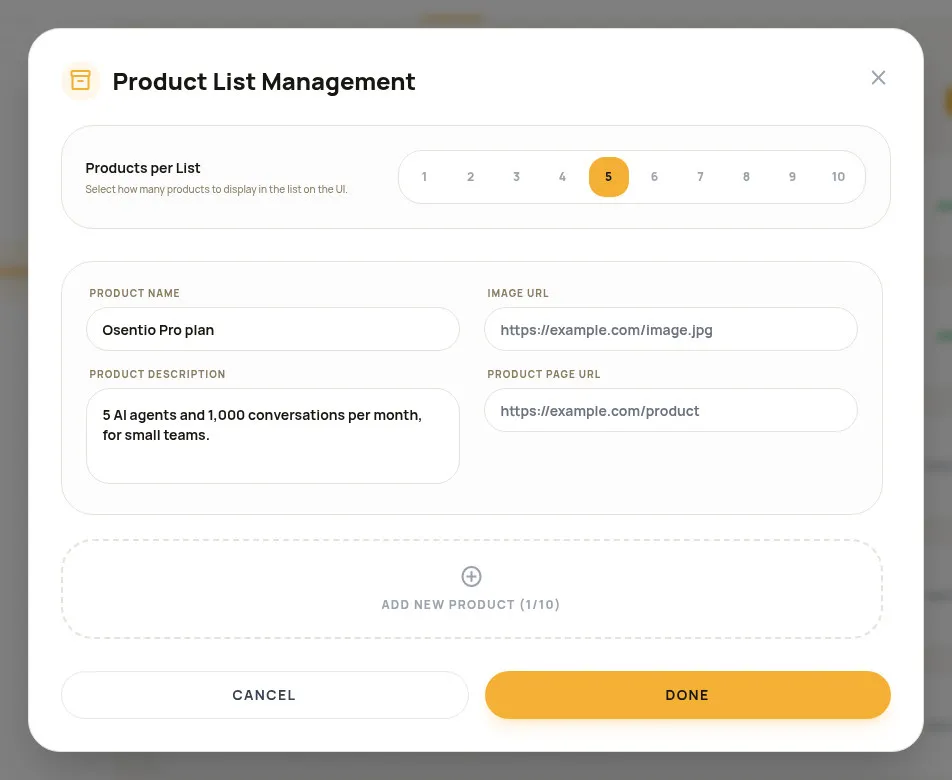
When a customer asks about products, the agent shows the products you set up as cards.
- Products per List: how many products are shown at a time (1 to 10).
- Click Add New Product and fill in the product name, description, image URL and product page URL. All four fields are required.
- The image URL and product page URL must be publicly reachable; they are checked when you save.
Voice Chat
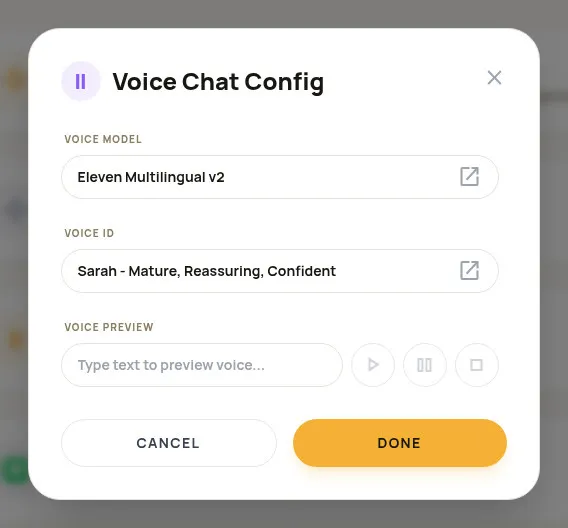
Customers can speak to the agent in the web chat window and hear its replies.
- Voice Model and Voice ID: choose the speech model and the voice.
- Voice Preview: type some text to hear the voice, then click Done.