Chapter 5
Training data
· Published by Osentio
An AI agent only answers from the training data you give it. The more complete the content and the closer it is to what customers really ask, the more accurate the answers. Select the agent, then open the Training Data tab.
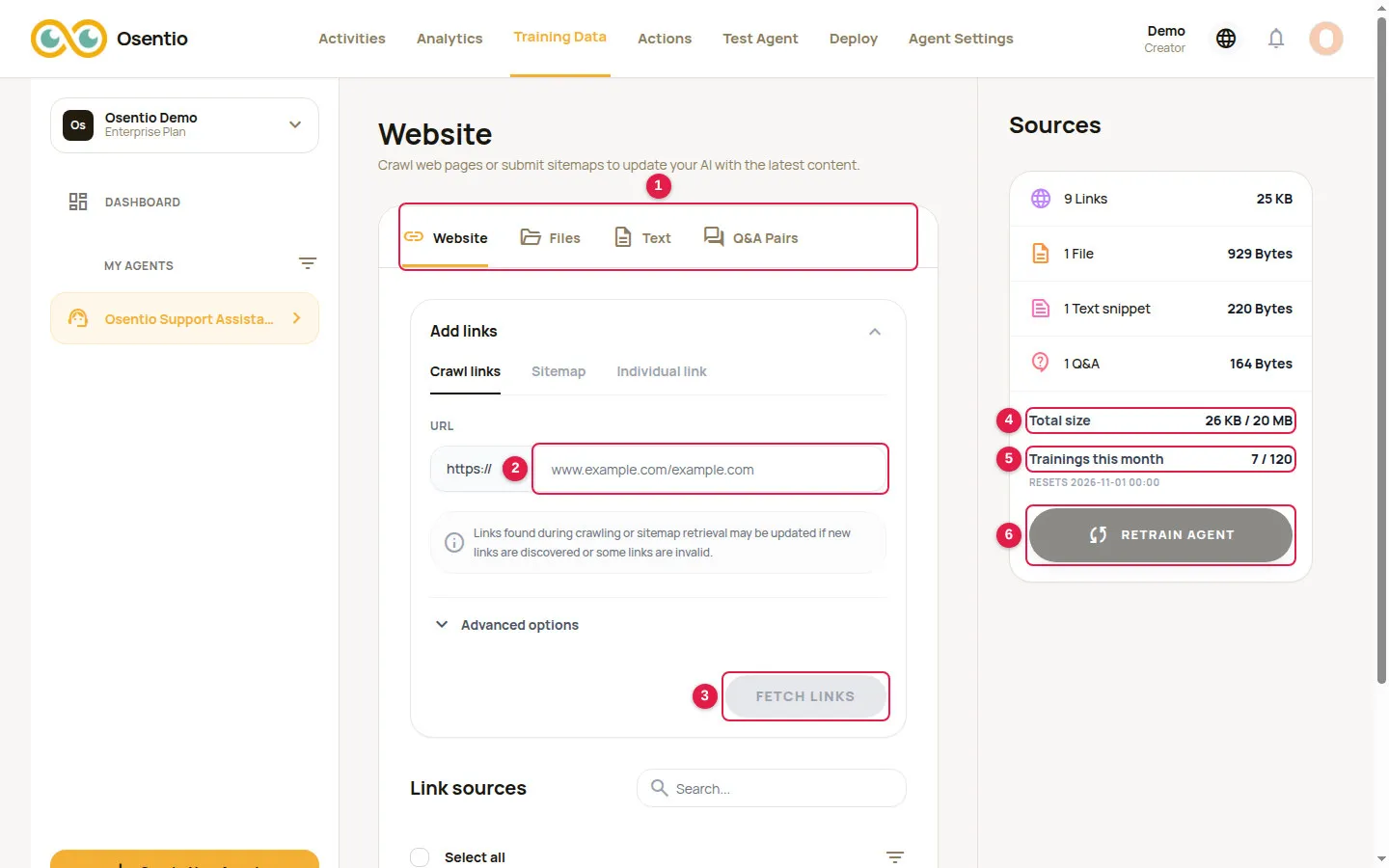
| No. | Description |
|---|---|
| 1 | The four kinds of sources: Website, Files, Text and Q&A Pairs. |
| 2 3 | Enter a URL and click Fetch links to add a website source. |
| 4 | Total size: storage used and your plan's limit. Retraining is not possible above the limit. |
| 5 | Trainings this month: trainings used and available this month, with the reset time below. |
| 6 | Retrain agent: can be clicked only when the data has changed. |
Website
There are three ways to add links:
- Crawl links: enter the site's home page; Osentio follows the links within the site to find other pages.
- Sitemap: enter the address of a sitemap to add all the pages it lists.
- Individual link: add one specific page only.
Open Advanced options to include only, or exclude, certain paths. When fetching finishes, the links are listed under Link sources, where you can tick and remove pages you do not need.
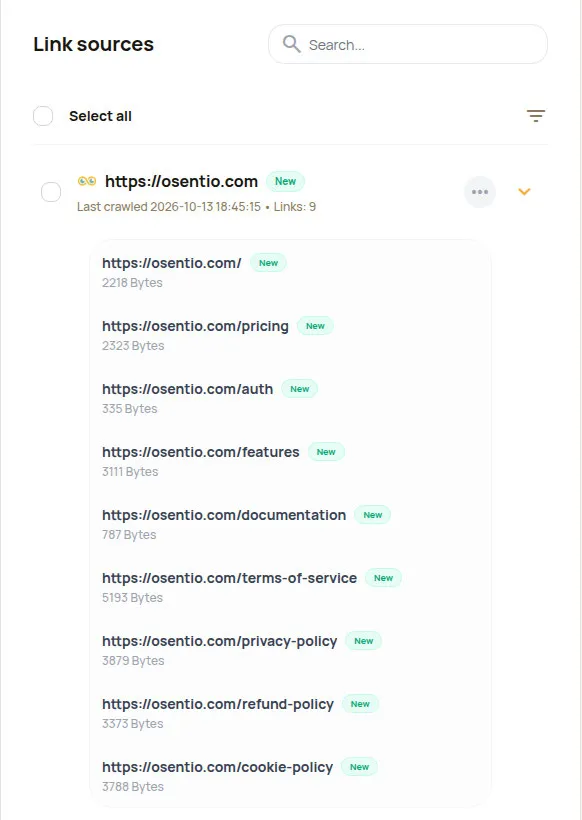
The number under each link is the amount of text read from that page. A value of 0 means no readable text was found, so the agent learns nothing from it; add the content as text or Q&A pairs instead. When your website changes, click ⋯ next to the source, choose Re-crawl, then retrain.
Files
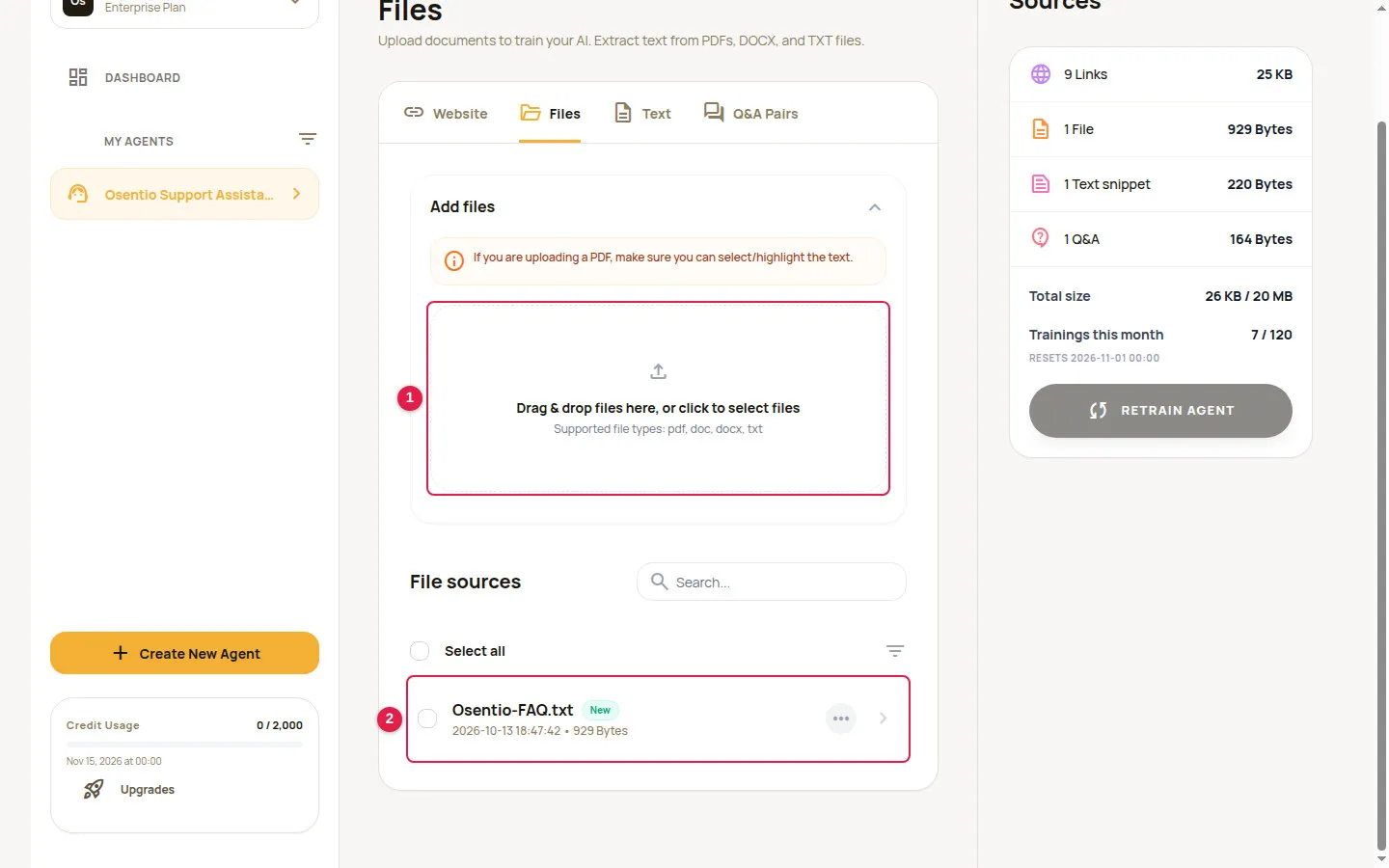
- Switch to the Files tab.
- Drag files onto the dashed box 1, or click inside it to select files.
- When the upload finishes, the file is listed under File sources 2 with the upload time and the amount of text read. Right after uploading it briefly shows as processing.
Text and Q&A pairs
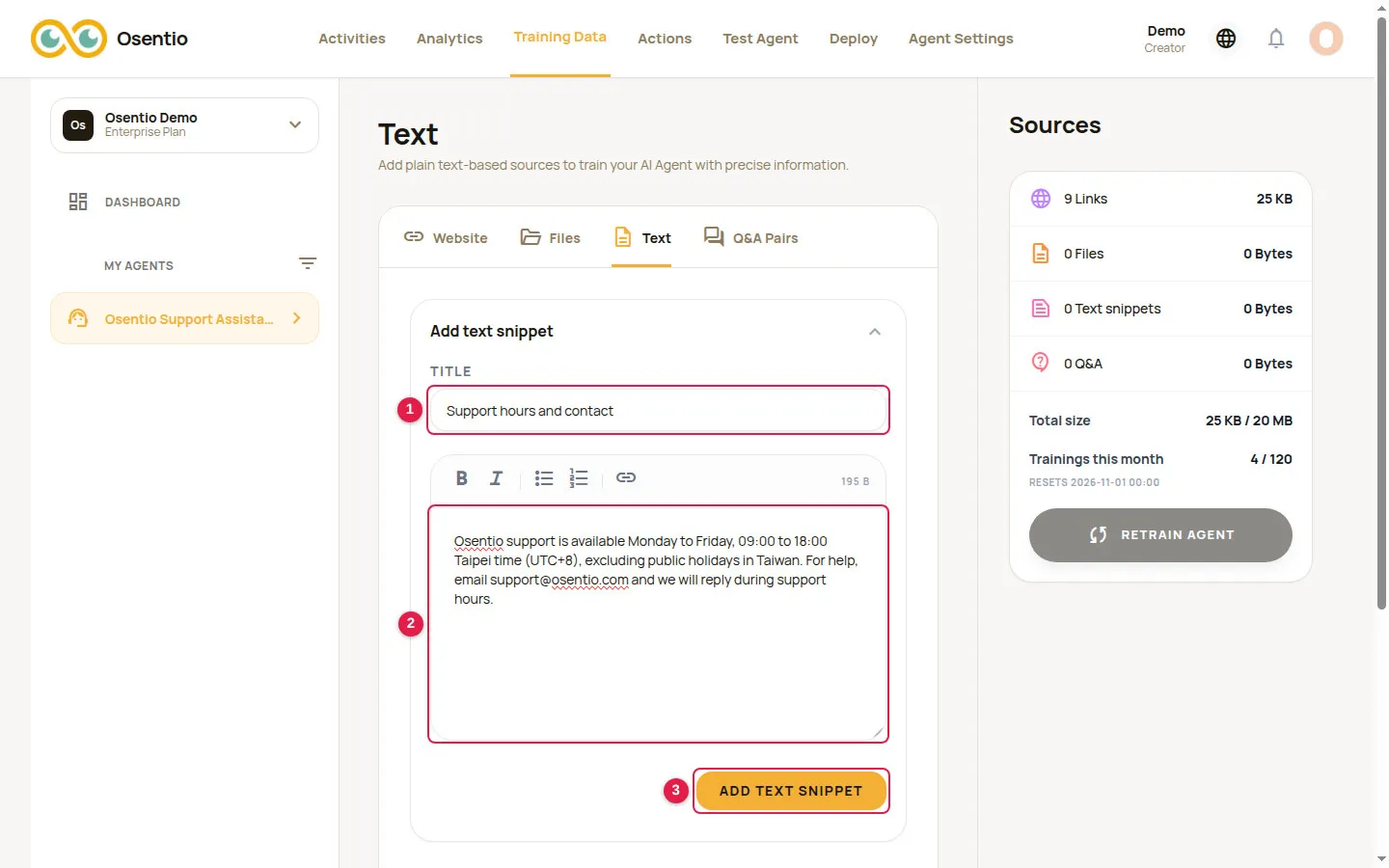
Text is for information that is not on your website but customers often ask about, such as opening hours, shipping fees or return rules. Enter a Title 1 and the content 2, then click Add text snippet 3.
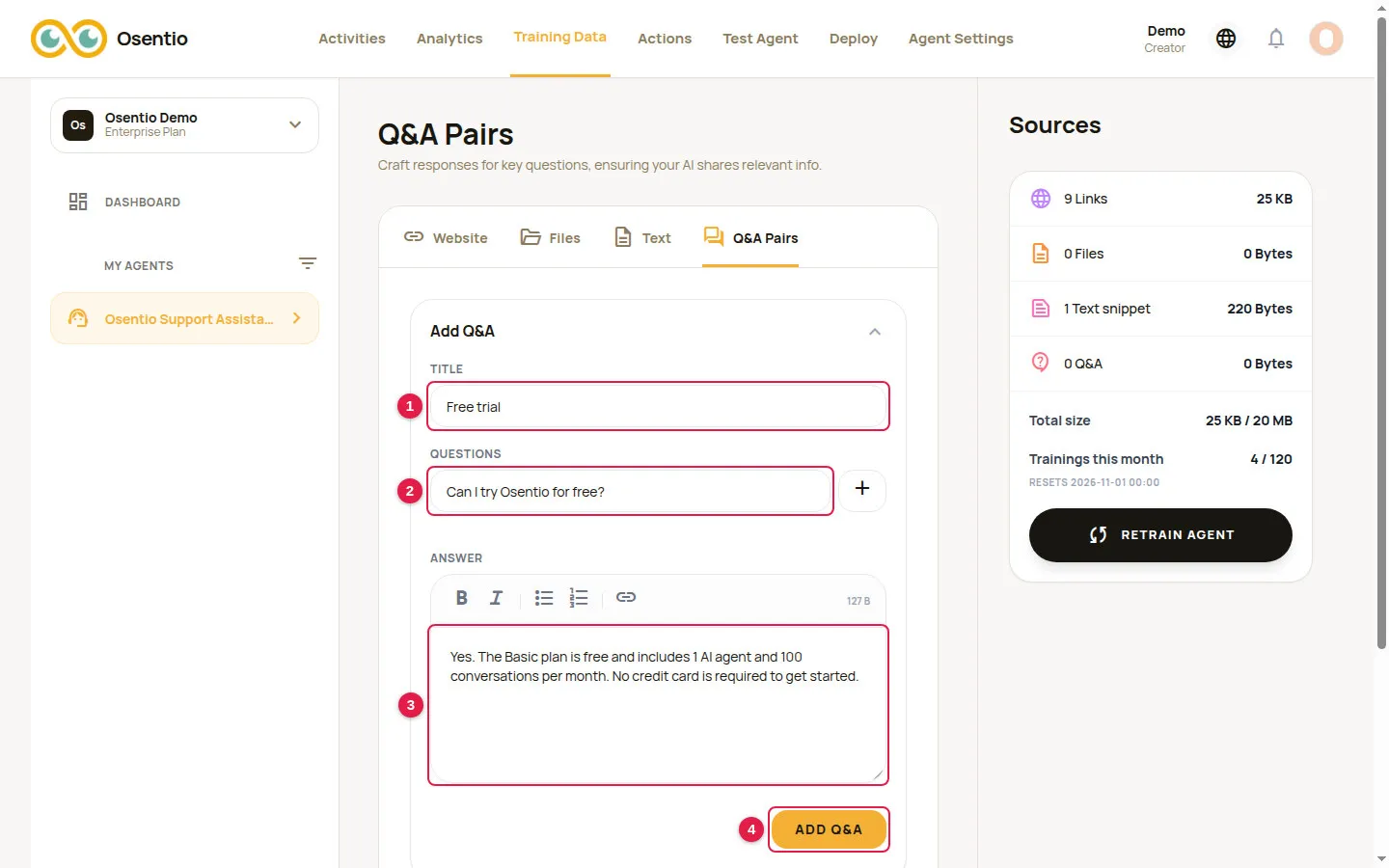
Q&A pairs are for questions that need a fixed answer. Enter a Title 1, the Question 2 and the Answer 3, then click Add Q&A 4. Use the plus button next to the question to add other ways of asking the same thing.
Retraining
- Check on the right that Total size is within the limit and that Trainings this month has trainings left.
- Click Retrain agent and confirm the message that retraining has started.
- The page shows “Knowledge base is updating”; the notice disappears by itself when training is done.