Chapter 2
Signing up and logging in
· Published by Osentio
Logging in
Open https://osentio.com and click Log In at the top right.
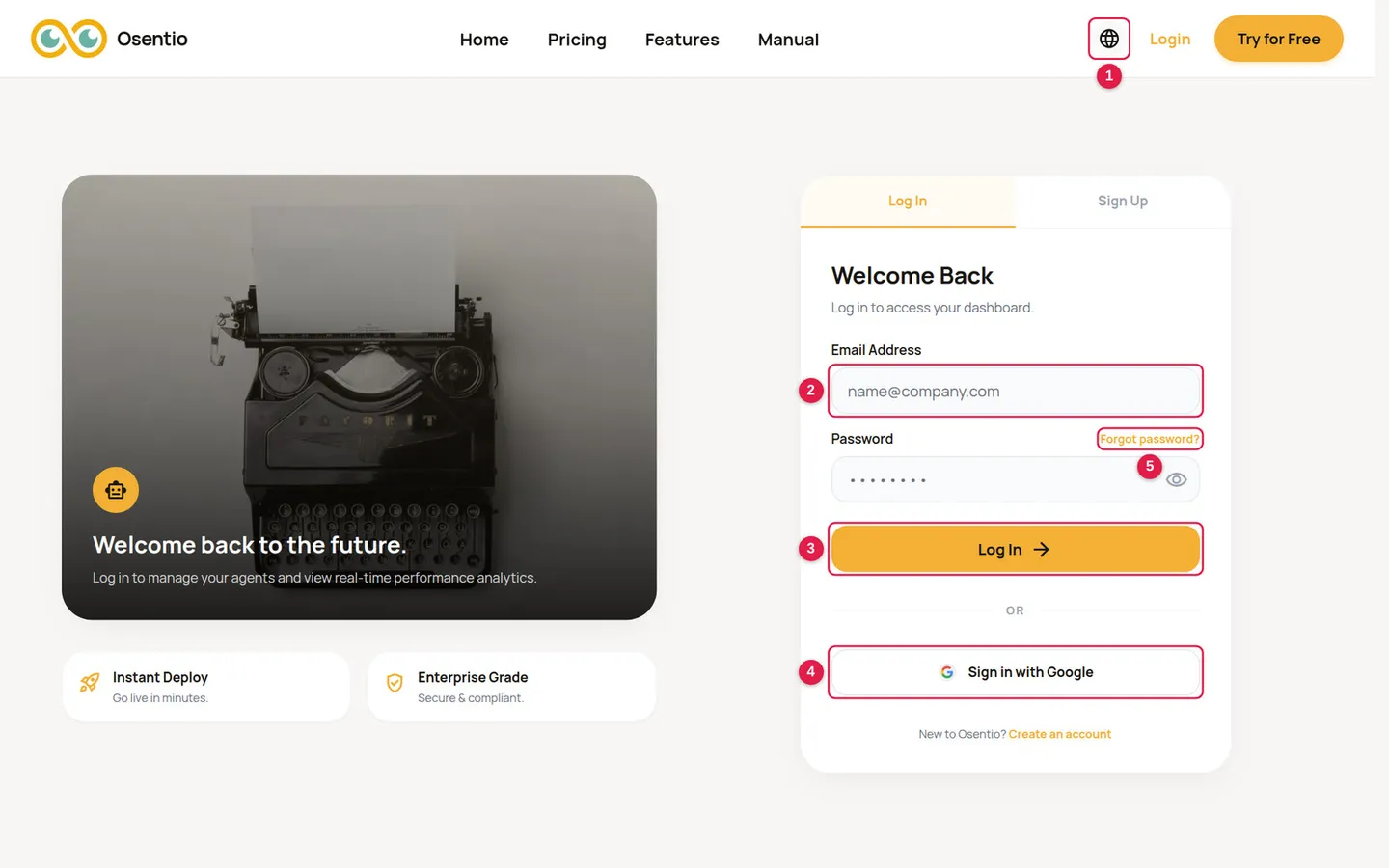
- To change the interface language, click the globe icon 1 and choose a language.
- Enter the email 2 and password you signed up with, then click Log In 3.
- If you signed up with a Google account, click Sign in with Google 4.
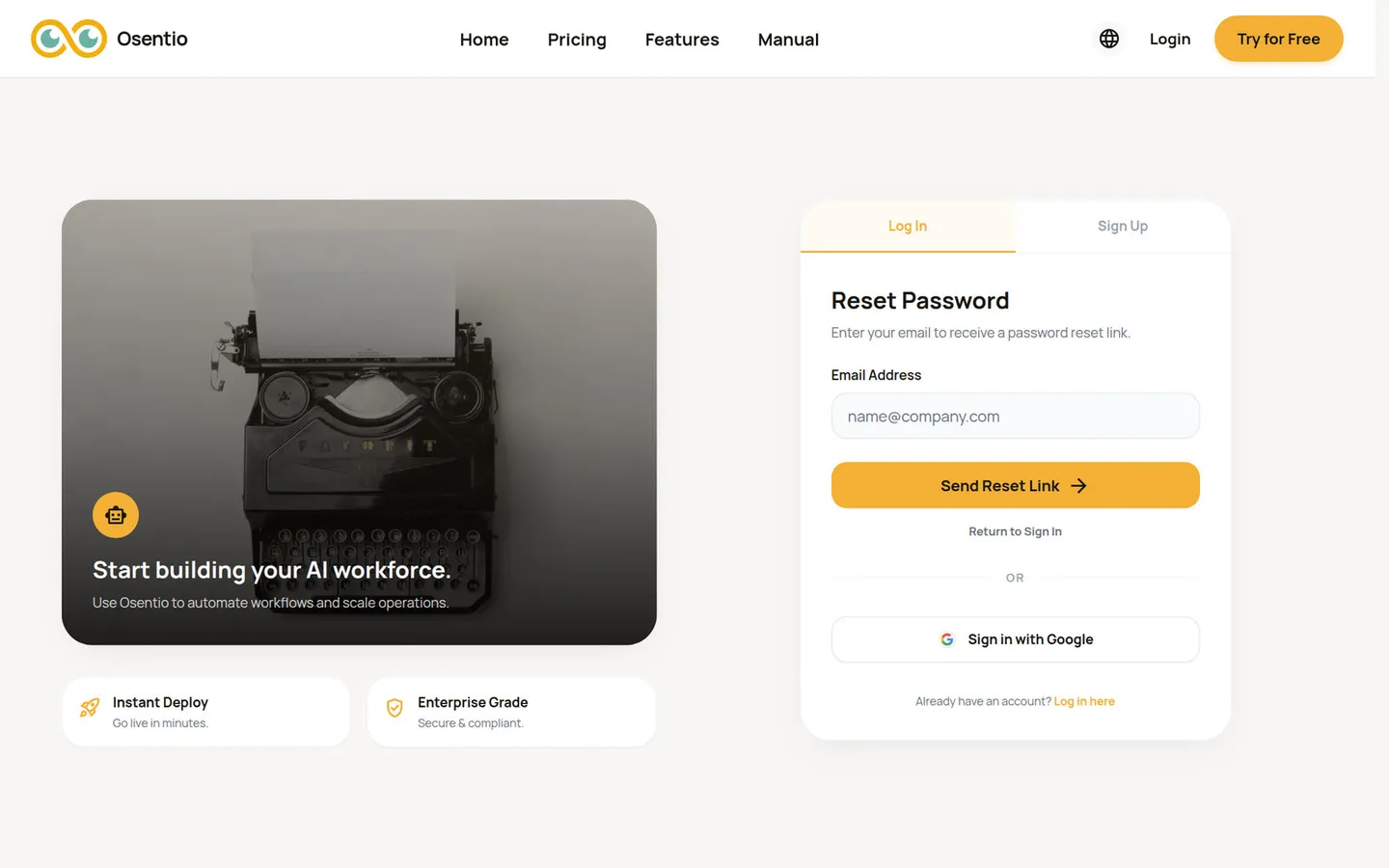
- If you forgot your password, click Forgot password? 5, enter your email and follow the reset link sent to your inbox.
TipYou stay logged in for one day. After that, log in again.
Creating an account
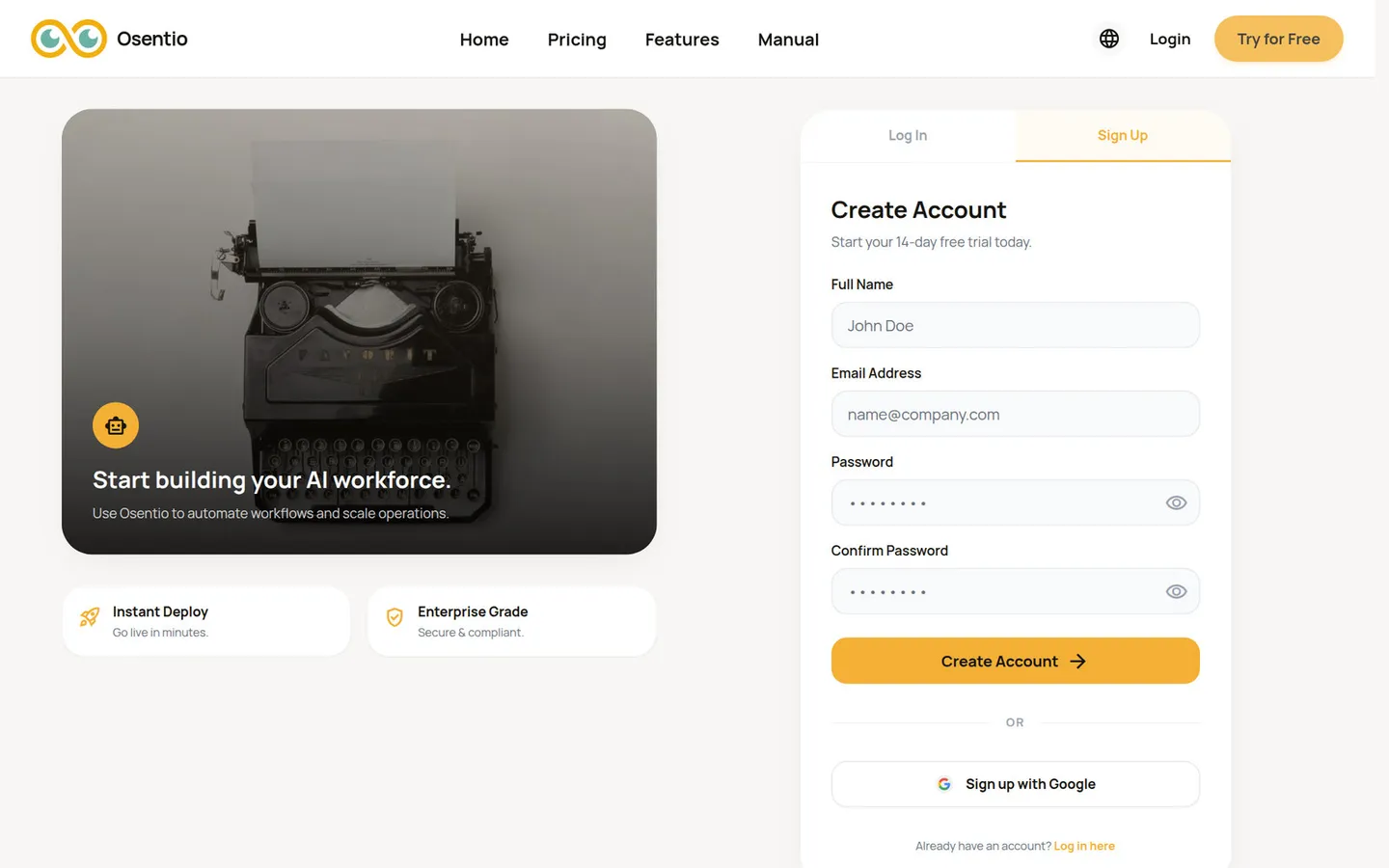
- On the login page, switch to the Sign Up tab.
- Enter your name, email and password (the two password fields must match) and submit. The page then asks you to check your inbox.
- Open the verification email, click the link in it, then return to the login page and log in.
- On your first login you are asked to create a workspace. Enter a workspace name to get started.
TipIf the verification email does not arrive, check your spam folder first. A new password set through the reset link needs at least 8 characters, including a number and a special character.