Chapter 13
Team members and roles
· Published by Osentio
Invite colleagues to the workspace to manage agents and handle leads together. The number of members depends on your plan (Pro 5, Enterprise 10).
Inviting a member
- Click your avatar at the top right and choose Settings.
- Under Workspace Settings → Team Members, click Invite Member.
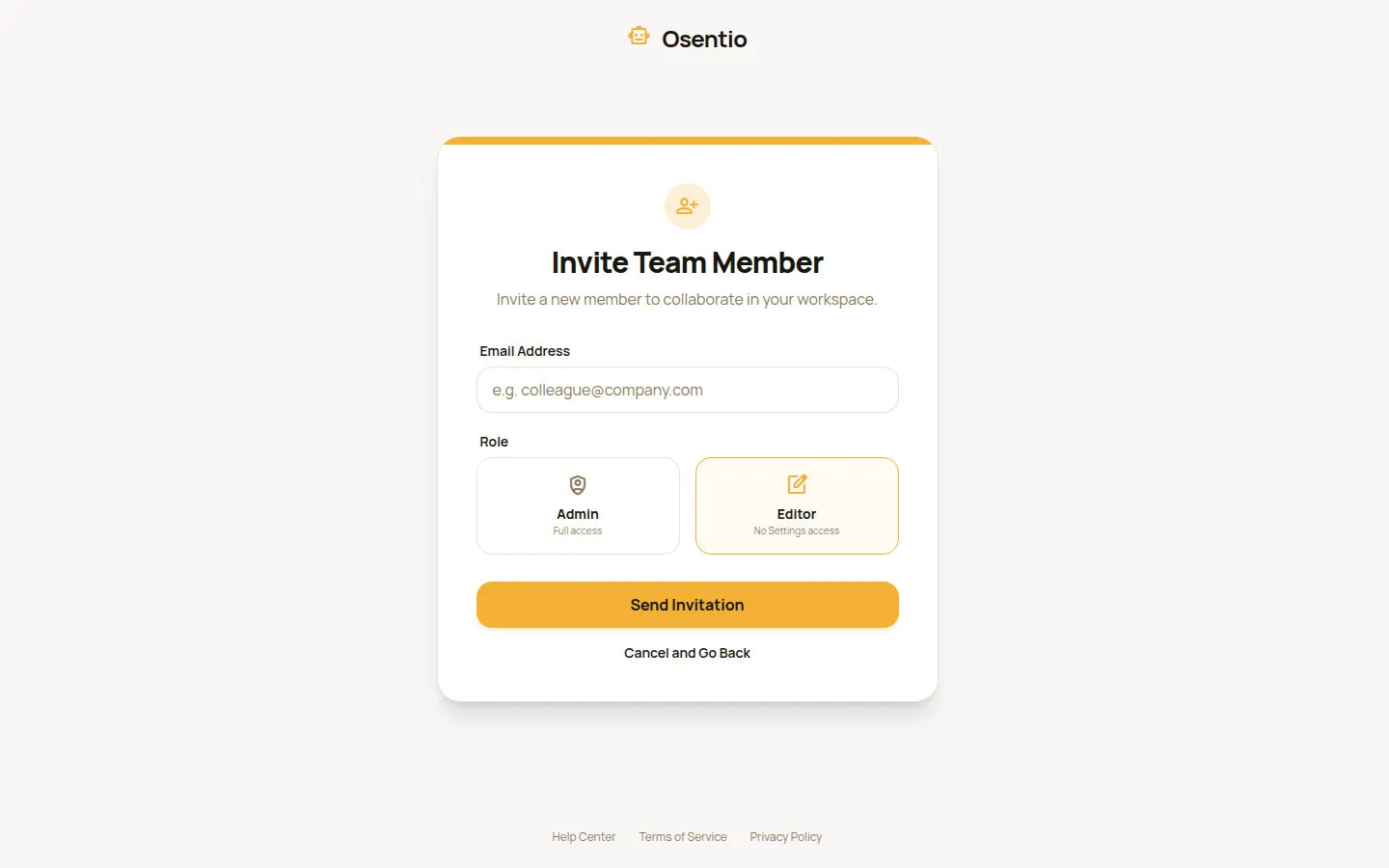
- Enter the person's email, choose a role (Admin or Editor) and click Send Invitation.
- They receive an invitation email. After clicking its link and logging in (or signing up), they join the workspace.
TipAn invitation link is valid for 7 days. After that, send a new invitation.
What each role can do
| Feature | Creator | Admin | Editor |
|---|---|---|---|
| View Dashboard, Activities and Analytics | ✓ | ✓ | ✓ |
| Use the Test Agent page | ✓ | ✓ | ✓ |
| Create agents; manage Training Data, Actions, Deploy and Agent Settings | ✓ | ✓ | — |
| Invite and remove members | ✓ | ✓ | — |
| Create and manage workspaces | ✓ | ✓ | — |
| View billing, change the plan | ✓ | ✓ | — |
The Creator is the person who created the workspace. There is one per workspace and they cannot be removed. The workspace's plan and limits follow the Creator's subscription.